This chapter follows Deploying containers with Cloud Run. Google Cloud Storage (GCS) is object storage: files are objects in buckets, accessed over HTTPS with the JSON API or client libraries—not as a POSIX mount.
For how GCS fits among disks, file shares, and databases, start with the comparison below; hands-on steps wire the bucket into the Express API.
Where Cloud Storage fits
Applications mix storage types:
| Need | GCP option |
|---|---|
| VM boot/data disks | Persistent Disk |
| Shared file semantics (NFS) | Filestore |
| Large binary objects, static assets, backups | Cloud Storage |
| Transactional or queryable data | Cloud SQL, Spanner, Firestore, BigQuery, … |
Binary (BLOB) storage via GCS suits uploads, media, archives, and serverless backends. Databases own structured queries and transactions. The series API stores raw uploaded files in GCS and keeps no local disk state on Cloud Run.
Object storage traits that matter for cloud-native apps:
- Objects are immutable; overwrites create new generations when versioning is on.
- Scale is practically unlimited; you pay for stored bytes and operations.
- REST/API access instead of block-device attachment.
- Storage classes and lifecycle rules tune cost versus access frequency.
Buckets, locations, and naming
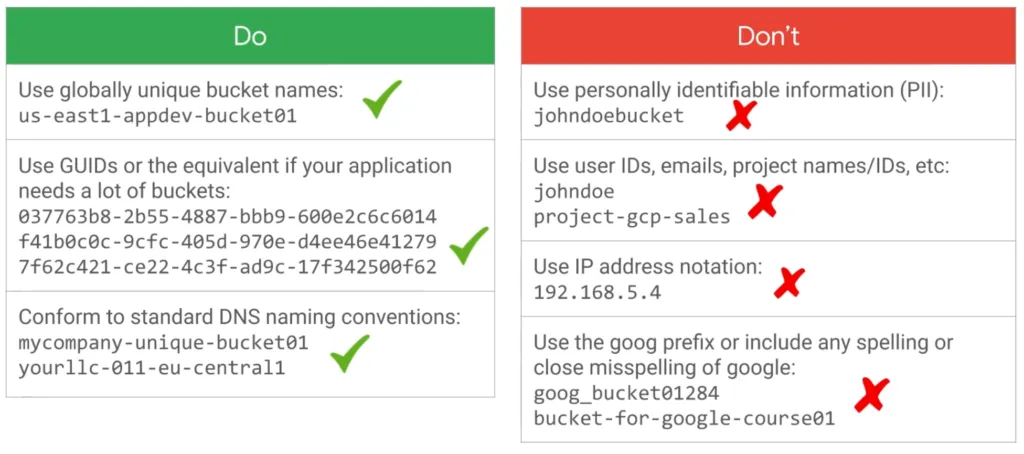
A bucket is a globally unique namespace. Names must be DNS-compatible (lowercase, numbers, hyphens). Choose location type deliberately:
| Location type | Use |
|---|---|
| Region | Lowest latency to one region |
| Dual-region | Redundancy across two regions |
| Multi-region | Highest availability (for example US, EU) |
Create the series bucket with uniform access (recommended):
gcloud storage buckets create gs://YOUR_UNIQUE_BUCKET_NAME \ --location=europe-west1 \ --uniform-bucket-level-accessBind the runtime service account at bucket scope:
gcloud storage buckets add-iam-policy-binding gs://YOUR_UNIQUE_BUCKET_NAME \ --member="serviceAccount:file-api-runtime@YOUR_PROJECT_ID.iam.gserviceaccount.com" \ --role="roles/storage.objectAdmin"Update Cloud Run:
gcloud run services update file-api \ --region=europe-west1 \ --set-env-vars="GCS_BUCKET=YOUR_UNIQUE_BUCKET_NAME"Storage classes
All classes offer high durability; they differ in availability, minimum storage duration, and price:
| Class | Access pattern |
|---|---|
| Standard | Frequent access |
| Nearline | About once a month |
| Coldline | About once a quarter |
| Archive | Rare access, lowest storage cost |
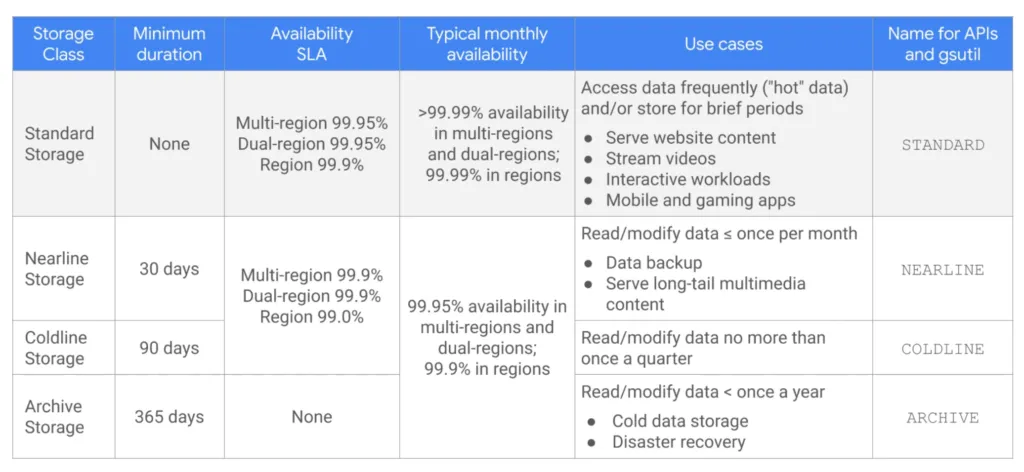
Change default class on create with --default-storage-class, or transition objects with lifecycle rules.
Versioning and lifecycle
Versioning keeps noncurrent objects when you overwrite or delete:
gcloud storage buckets update gs://YOUR_UNIQUE_BUCKET_NAME --versioningList generations:
gcloud storage ls -a gs://YOUR_UNIQUE_BUCKET_NAME/object.txtRestore by copying a generation to the live name (see commands below).
Lifecycle policies automate class transitions and deletion—for example move uploads to Nearline after 30 days.
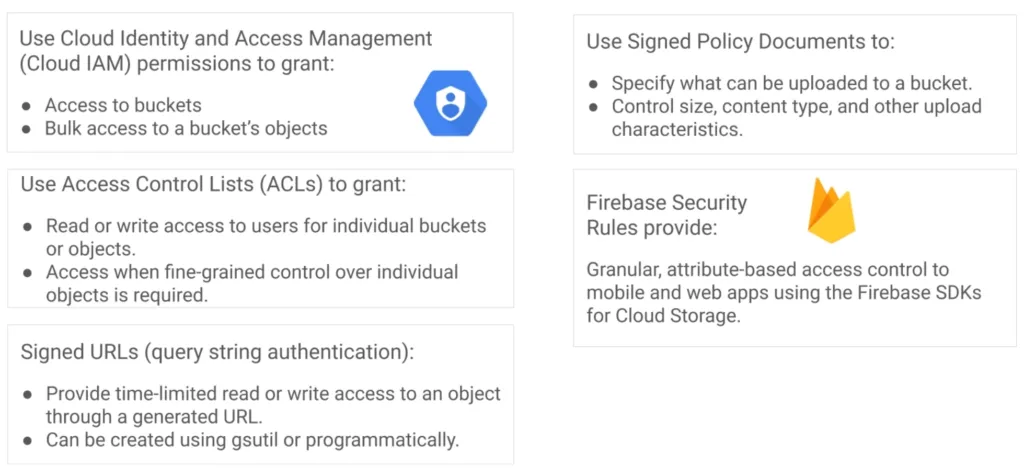
Access control
Prefer uniform bucket-level access and IAM (roles/storage.objectViewer, objectCreator, objectAdmin). Legacy ACLs per object still exist but complicate audits.
For browser downloads without public buckets, use signed URLs generated by your API.
Naming rules for global bucket names:
Access control overview:
CORS for browser uploads
If a web app posts directly to GCS, configure CORS on the bucket:
[ { "origin": ["https://your-app.example"], "method": ["GET", "POST", "PUT"], "responseHeader": ["Content-Type"], "maxAgeSeconds": 3600 }]Apply:
gcloud storage buckets update gs://YOUR_UNIQUE_BUCKET_NAME --cors-file=cors.jsonThe series API uploads through Cloud Run, so CORS on the bucket is optional unless you add browser-to-GCS flows later.
Application code
Add dependencies:
npm install @google-cloud/storage multernpm install -D @types/multerExtend the server:
import express from "express";import multer from "multer";import { Storage } from "@google-cloud/storage";
const port = Number(process.env.PORT) || 8080;const bucketName = process.env.GCS_BUCKET;const storage = new Storage();const upload = multer({ storage: multer.memoryStorage() });const app = express();
app.get("/health", (_req, res) => res.json({ ok: true }));
app.get("/files", async (_req, res) => { if (!bucketName) { res.status(500).json({ error: "GCS_BUCKET not set" }); return; } const [files] = await storage.bucket(bucketName).getFiles({ maxResults: 100 }); res.json({ files: files.map((f) => f.name) });});
app.post("/files", upload.single("file"), async (req, res) => { if (!bucketName || !req.file) { res.status(400).json({ error: "Missing bucket or file" }); return; } const name = req.file.originalname.replace(/[^a-zA-Z0-9._-]/g, "_"); await storage.bucket(bucketName).file(name).save(req.file.buffer, { contentType: req.file.mimetype, }); res.status(201).json({ name });});
app.listen(port, () => { console.log(JSON.stringify({ severity: "INFO", message: `Listening on ${port}` }));});Rebuild the image, push to Artifact Registry, and redeploy Cloud Run.
Common operations
gcloud storage lsgcloud storage ls gs://YOUR_UNIQUE_BUCKET_NAMEgcloud storage cp ./local.txt gs://YOUR_UNIQUE_BUCKET_NAME/local.txtgcloud storage cp gs://YOUR_UNIQUE_BUCKET_NAME/local.txt ./downloaded.txtCopy a specific noncurrent generation when versioning is enabled:
gcloud storage cp \ "gs://YOUR_UNIQUE_BUCKET_NAME/object.txt#GENERATION" \ gs://YOUR_UNIQUE_BUCKET_NAME/object.txtNext: Continuous delivery with Cloud Build automates build, push, and deploy when you change the app.
Check your understanding
Question 1 of 8
0 of 8 checked