Containers run in isolation and do not see other containers unless you attach them to a Docker network. Legacy container linking is deprecated; user-defined bridge networks are the default mental model.
You have two historical options to let containers communicate on one machine:
- Container Linking (aka legacy linking, deprecated) without any networks involved or
- using Container Networks.
Linking containers is simple to setup, but also limited and should only be used during development.
Option 1: Container Linking (Legacy Linking, deprecated)
Let’s assume you have two containers: The first one is running MongoDB, the second is running NodeJS and you want to connect them via Container Linking. First you give the MongoDB container a name:
# Run container with namedocker run -d --name my-mongodb mongoThen your second container (in this example node) can be linked to it:
# Link node container to my-mongo and choose alias 'mongodb'docker run -d --link my-mongo:mongodb nodeThe alias mongodb that you chose is now available as a host within the node container:
{ "databaseConfig" : { "host" : "mongodb", "database" : "myDatabase" }}You can repeat this process if you want to join more containers.
Option 2: Creating a container network
Containers have networking enabled by default, and they can make outgoing connections. If two containers are on the same network (and only then), they can talk to each other using container IP addresses or container names. You can group containers into their own isolated network.
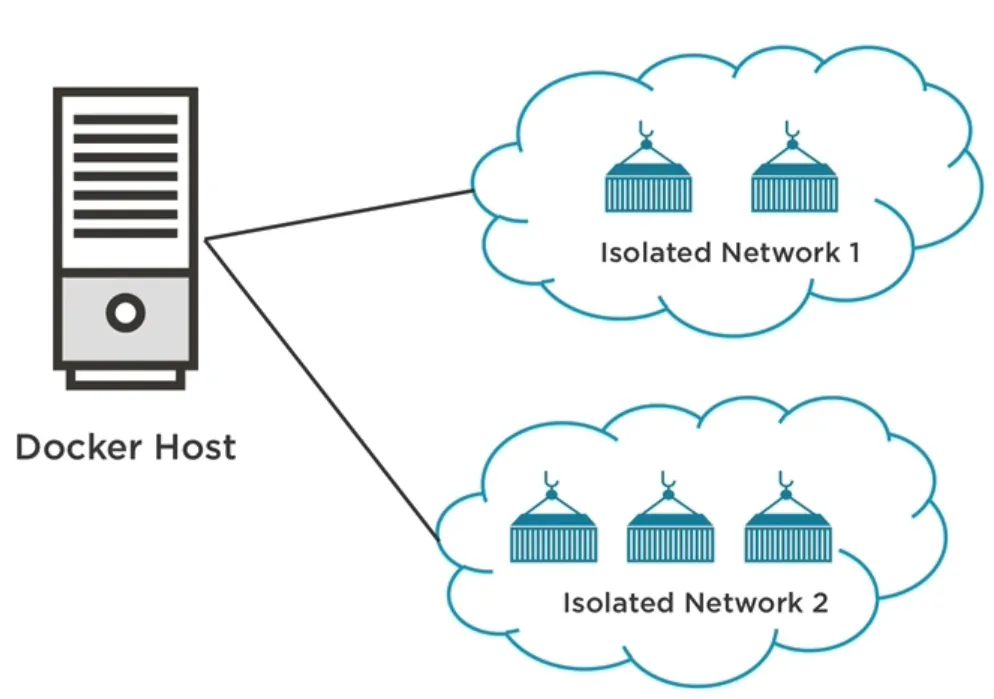
# list networks and their driversdocker network ls
# list containers attached to the network, subnet, gateway and othersdocker network inspect my-networkFirst you have to create a custom bridge network. After that there are two ways to put a container on a network:
- Assign the network to a container that you start or
- add an already running container to the network.
# create bridged network with name 'isolated-network'docker network create --driver bridge isolated-networkNow, start the first container and attach it to the network:
# run detached container and assign networkdocker run -d \ --network isolated-network \ --network-alias mongodb \ mongo
# --network is same as --net# --network-alias is same as --net-aliasHaving network-alias mongodb allows us to connect to this container using mongodb as host name.
Run the second container and attach it to the same network:
# run detached container and assign networkdocker run -d \ --network isolated-network \ --network-alias node-app \ nodeDocker network drivers
bridge |
The default network driver. |
|---|---|
host |
Remove network isolation between the container and the Docker host. |
none |
Completely isolate a container from the host and other containers. |
overlay |
Overlay networks connect multiple Docker daemons together. |
ipvlan |
IPvlan networks provide full control over both IPv4 and IPv6 addressing. |
macvlan |
Assign a MAC address to a container. |
Linking multiple containers
If you have many containers it can be tedious to create networks and attach them to it via command line every time. Instead you should use Docker Compose.